
Overview
Content planning often starts before the team is ready for a strict calendar or task board. There are ideas, themes, deadlines, offers, and dependencies, but they are still too fuzzy for a linear workflow. This is where an online whiteboard becomes useful.
A whiteboard is not the final operating system for execution. It is the fastest place to explore clusters, spot gaps, and align around what should exist before you turn everything into deadlines and deliverables.
Practical content-planning notes
A whiteboard is useful for content planning because early ideas rarely arrive in calendar order. They show up as themes, customer questions, launch moments, rough hooks, and half-formed campaign angles.
The board should make those relationships visible before the team starts assigning deadlines. That is where many planning systems fail: they turn every early thought into a task before anyone has decided whether the idea is strong.
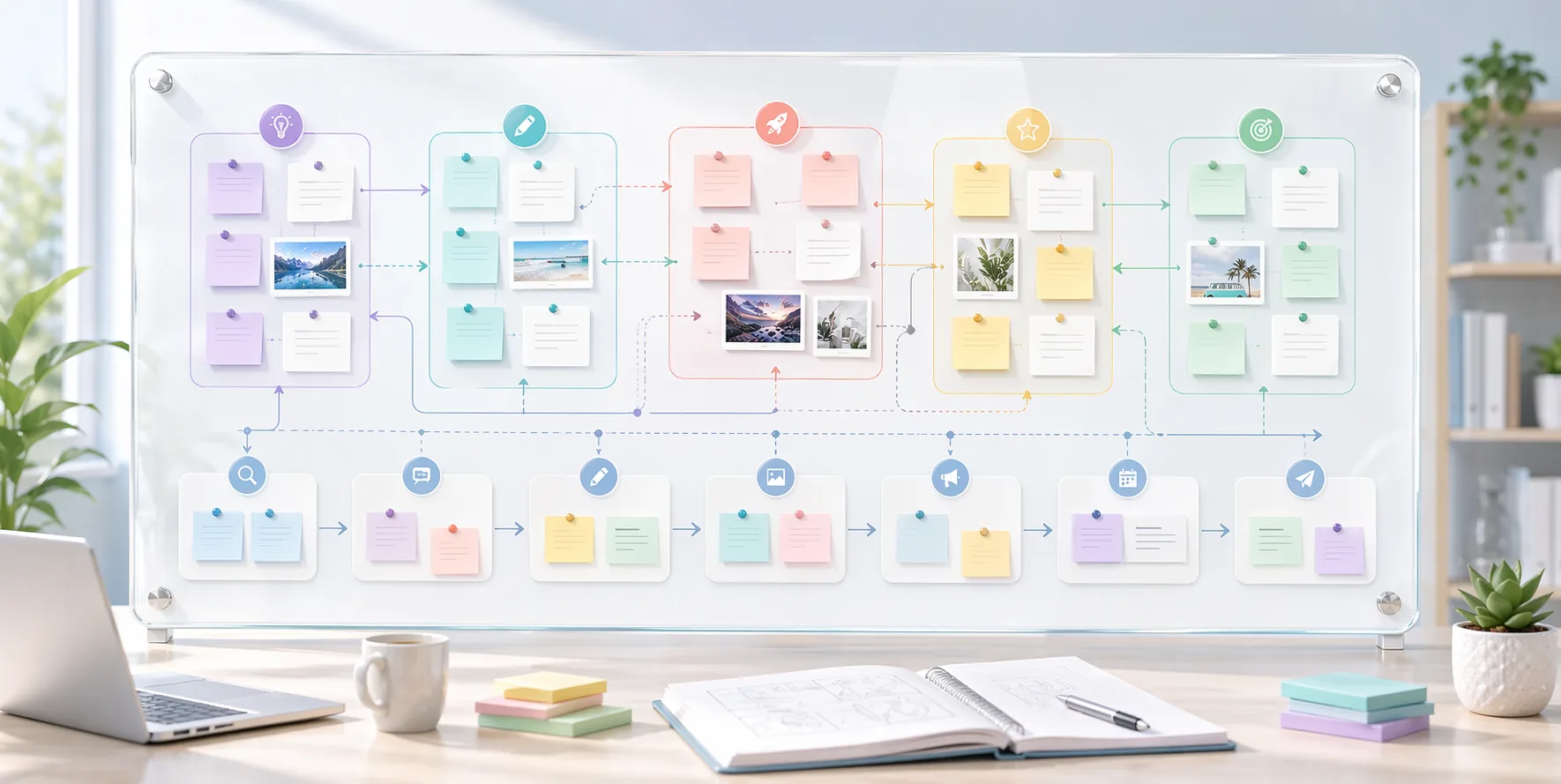
A good content board has zones for ideas, decisions, gaps, and next actions. When those zones are clear, the team can brainstorm freely without losing the structure needed to move into production later.
Before moving ideas into production
- Group related ideas into themes before assigning dates.
- Mark the ideas that need research, assets, or approval.
- Remove duplicates so the calendar does not become noisy.
- Turn only the agreed ideas into tasks or scheduled content.
Who this is for
- Creators planning a month or quarter of content themes.
- Small marketing teams mapping launches, campaigns, and article ideas.
- Operators who need a visual bridge between brainstorming and execution.
Step-by-step guidance
Step 1
Start with themes, not tasks
Write the big themes first: launches, campaign angles, categories, content pillars, seasonal topics, or customer questions. This creates the real planning map. Jumping straight into task cards too early usually creates busy work without strategic shape.
Step 2
Cluster related ideas visually
Group assets around one theme: article ideas, product shots, campaign hooks, email angles, or social variants. When related ideas live together spatially, patterns become visible. You can see where one theme is overloaded and another is empty.
Step 3
Use connectors to show dependencies
A strong whiteboard shows what depends on what. If the hero campaign cannot launch before product photos are updated, or if three posts depend on one guide being published first, draw that relationship. Dependencies are much easier to spot visually than in a plain list.
Step 4
Turn the approved clusters into an execution plan
Once the board reflects the real strategy, move the approved items into a planner or calendar system. The whiteboard remains useful as context, but the final execution layer should be structured enough to track deadlines and owners.
A content board that stays usable
Start by placing campaign goals, customer questions, and content ideas in separate zones. Then connect ideas to the goal they support. Anything that does not clearly support a goal can stay in parking or be removed.
At the end of the planning session, move approved ideas into a production list with owner, asset needs, and next step. The whiteboard remains the thinking space, while the task board becomes the execution space.
Comparison or example section
A whiteboard is best for early-stage planning and alignment. A planner board is better once work needs status, ownership, and deadlines. Using both in sequence is often stronger than forcing one tool to do both jobs from the beginning.
Mistakes to avoid
- Using a whiteboard as a permanent dumping ground with no transition to execution.
- Starting with tasks before the content themes are clear.
- Treating every idea as equally important instead of clustering around actual campaign priorities.
- Ignoring dependencies and then discovering blockers during production.
Ways to use Drawsy
Drawsy works best when ideas are still rough and visual
Open Drawsy when a task board feels too rigid and you need room to sketch, group, compare, and talk things through.
Best for
- Content planning, campaign mapping, and rough early structure.
- Small-team workshops, async feedback, and shared visual notes.
- Simple diagrams, concept boards, and side-by-side ideas.
How to use it well
Start here when the work is still fuzzy: Drawsy is a better fit than a task board when the team is still figuring out the shape of the work, comparing options, or trying to see the whole thing in one place.
A good fit for creators and small teams: It is especially useful for content planning, launch sketches, workshop notes, flow diagrams, and other work that needs a visual pass before anyone starts assigning tasks.
Keep the board from turning messy: Give each board one clear purpose, split it into simple zones, and move finished decisions out once people agree on what should happen next.
Move finished ideas into execution: Once the plan is clear, shift the approved work into Planner or another task layer. Drawsy is strongest before the work needs statuses, owners, and deadlines.
FAQ
Why not plan content directly in a task board?
Task boards are great for execution, but early-stage planning is often too messy and exploratory. A whiteboard gives the team room to think before they commit.
What should move from the whiteboard into Planner?
Approved ideas, content packages, deadlines, and concrete work that now needs ownership and progress tracking.
Is this useful for solo creators too?
Yes. Solo operators often benefit even more because the whiteboard externalizes ideas that would otherwise stay trapped in notes or tabs.