
Overview
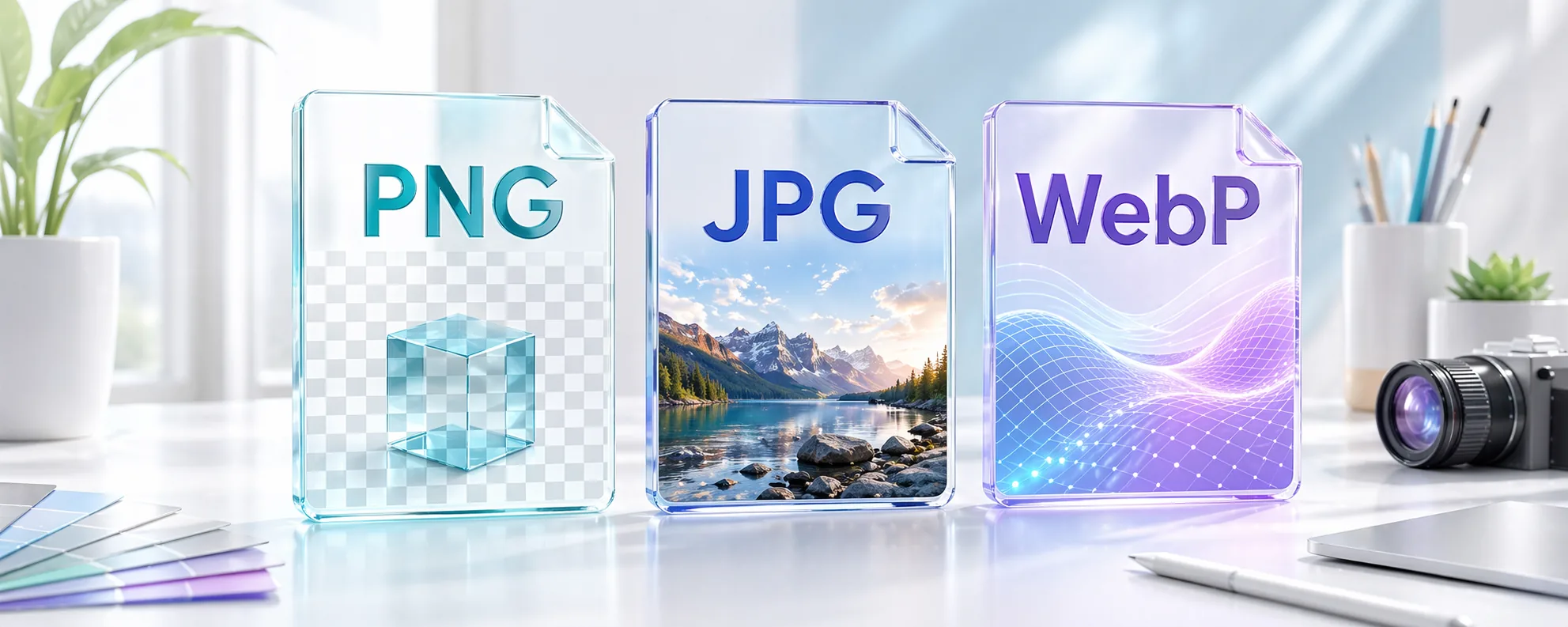
Many teams still lose time by treating PNG, JPG, and WebP as interchangeable. They are not. Each format makes a tradeoff between image quality, transparency support, browser performance, and export size.
If you choose the wrong format, the cost usually shows up later. Product pages feel slower, blog images look soft, marketplace uploads fail requirements, or designers keep exporting the same file three times just to find a version that looks acceptable. The right decision is rarely about theory. It is about where the image will be used, how quickly it needs to load, and whether you need transparency or aggressive compression.
Practical publishing notes
The safest format choice is usually made after you know the final channel. A webshop category thumbnail, a transparent logo, a blog hero, and a marketplace upload may all start from the same source folder, but they should not automatically end as the same file type.
For product teams, the biggest win is agreeing on defaults before the busy season starts. Use JPG or WebP for normal catalog photography, keep PNG for transparency-heavy assets, and document the few cases where a marketplace or ad platform forces a different choice.
It also helps to keep a master folder untouched. Once a file has been compressed, resized, uploaded, downloaded, and compressed again, quality problems become harder to trace. A clean original gives you a place to restart when an export rule turns out to be wrong.
Before you export
- Check whether the destination accepts WebP, or whether it still expects JPG or PNG.
- Keep transparent graphics as PNG unless you have tested WebP transparency in the exact publishing system.
- Use one small sample export before converting a large product folder.
- Compare the final file in the layout where customers will actually see it.
Who this is for
- Store owners who prepare catalog and collection images for a shop.
- Creators and marketers who publish blog graphics, social posts, or ad visuals every week.
- Small teams that want a simple rule set for exports so everyone stops guessing.
Step-by-step guidance
Step 1
Start with the image purpose, not the file extension
Ask where the image will live first. Product photos on a storefront usually need a smaller file and predictable quality, so JPG or WebP is often the right baseline. Logos, diagrams, and interface elements often need crisp edges or transparency, which makes PNG stronger. If the image is a mixed-use website asset and the site supports it well, WebP can often give you the best balance between visible quality and file size.
Step 2
Use PNG when transparency or hard edges really matter
PNG is best when the image needs a transparent background, clean text rendering, or sharp UI-style edges. That makes it useful for logos, overlays, isolated cutouts, screenshots, and exported assets that must sit on multiple backgrounds. The downside is size. For large photographic images, PNG often becomes unnecessarily heavy.
Step 3
Use JPG for photographs when compatibility matters most
JPG remains the safest choice for product photography, editorial photos, and marketplace uploads where universal compatibility matters. It compresses photographs efficiently, but it can produce artifacts if you push the quality too far down. It also does not support transparency, so it is a weak fit for cutout graphics and composited assets.
Step 4
Use WebP when you need modern compression without obvious quality loss
WebP is often the best format for published web assets because it usually produces smaller files than JPG or PNG at a similar perceived quality. It can also support transparency. For stores, landing pages, and blogs, this makes it a strong default when your platform and channels accept it. The main check is workflow compatibility: if a marketplace, ad platform, or client still expects JPG or PNG, export for that destination instead of forcing WebP everywhere.
A simple image-format workflow
Start by sorting the folder into photos, transparent graphics, and mixed web assets. Export product photos to JPG or WebP, keep logos and cutouts as PNG, and treat campaign graphics as a separate batch because they often need different dimensions.
After export, review a grid of representative images rather than only one perfect example. Look for soft edges, heavy artifacts, missing transparency, and inconsistent background treatment. If the sample set holds up, run the full batch with the same rule.
Comparison or example section
If you are exporting product photos for a webshop, a compressed JPG or WebP usually wins. If you are preparing a logo with transparency, PNG wins. If you are publishing a hero image on your own site and want better load speed without visibly crushing the file, WebP is usually the better publishing format.
A useful rule is this: use PNG for precision, JPG for compatibility, and WebP for modern web delivery.
Mistakes to avoid
- Using PNG for every product photo and then wondering why category pages load slowly.
- Exporting JPG for assets that need a transparent background.
- Choosing WebP everywhere without checking whether the final destination accepts it.
- Compressing JPG too aggressively and then trying to fix banding or artifacting after the fact.
Learning hub
Build a cleaner image workflow around the converter
The converter is strongest when it is used as part of a repeatable publishing workflow, not as a random last-minute export step.
Best for
- Webshops that need fast, consistent catalog exports.
- Creators preparing one source set for multiple channels.
- Teams that want format and dimension decisions to feel less ad hoc.
How to use it well
What the converter is best for: Use it when the main problem is speed and consistency: resizing large sets, changing output format, preparing square product images, or exporting platform-specific variants from the same source files.
When PNG, JPG, and WebP should change your workflow: Format choice should follow the destination. Product photos often want JPG or WebP, while transparency-heavy assets need PNG. A converter becomes more useful when the team follows simple rules instead of guessing per file.
Why previewing a small sample matters: Batch conversion is fast enough that people often skip sample review. That is exactly how quality mistakes spread through a whole export run. Review five images before you run the full batch.
Common troubleshooting signals: If the output looks soft, the source may already be too small. If backgrounds feel wrong, the forced ratio or background treatment probably needs changing. If files are still heavy, the issue is often format choice rather than dimensions alone.
FAQ
Should I replace every JPG on my site with WebP?
Not automatically. WebP is often better for published site performance, but if a workflow, marketplace, or campaign channel requires JPG, you should keep exporting the format that destination expects.
Why do some PNG files become huge so quickly?
PNG keeps more visual information and supports transparency, so large photographic images can become much heavier than equivalent JPG or WebP exports.
Can I use WebP for product images?
Yes, if your storefront and downstream tools support it reliably. It is a strong format for many modern product-image workflows.